

Please check out my other write up for a CTF named GlacierCTF.
Tomcat Challenge

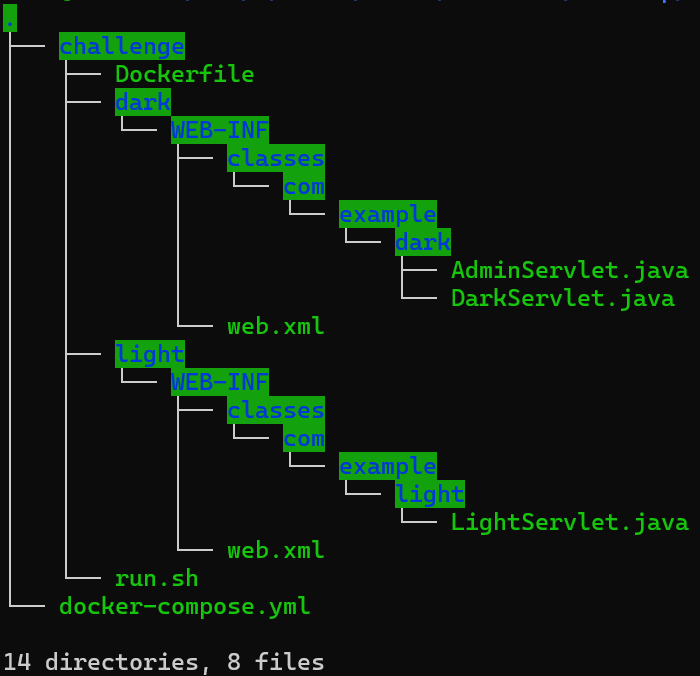
The image above shows the file tree of the files that was given to us for this challenge.
When visiting the site for this challenge, the page showed the default page for TomCat . I clicked one of the buttons to get to a page when a pop up came up asking for a password. I first attempted the most common passwords used such as:
- admin/admin
- admin/password
- tomcat/admin
- tomcat/s3cret
- admin/s3cret
- tomcat/tomcat
None of these worked. After the failed login it redirected me to this page:
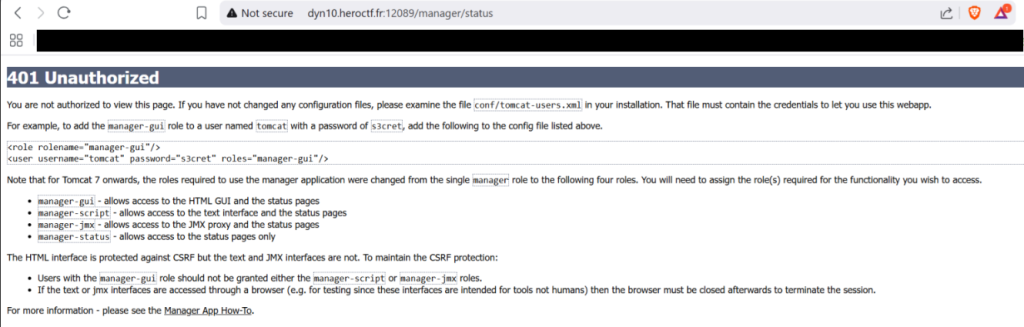
One of my first thoughts was that the version of Tomcat might be vulnerable. After looking into to see if it was running a vulnerable version, I found out it in fact not running a vulnerable version.
Now I looked more into the image above, I tired to visisted “/conf/tomcat-users.xml“. When I visited the page, it showed an error page. I also found some write up reports from other people that were related to Tomcat. But nothing worked.
For this challenge the creator allowed us access to the some of the source code of the challenge.
The AdminServlet caught my eye because it contains the exact code to get the flag. The red box shows that that it will grab the session data and looks for a string named username. It will assign the username with the name given in the cookie.
If the username string matches the word “darth_sidious” it will append the html page and give the flag!
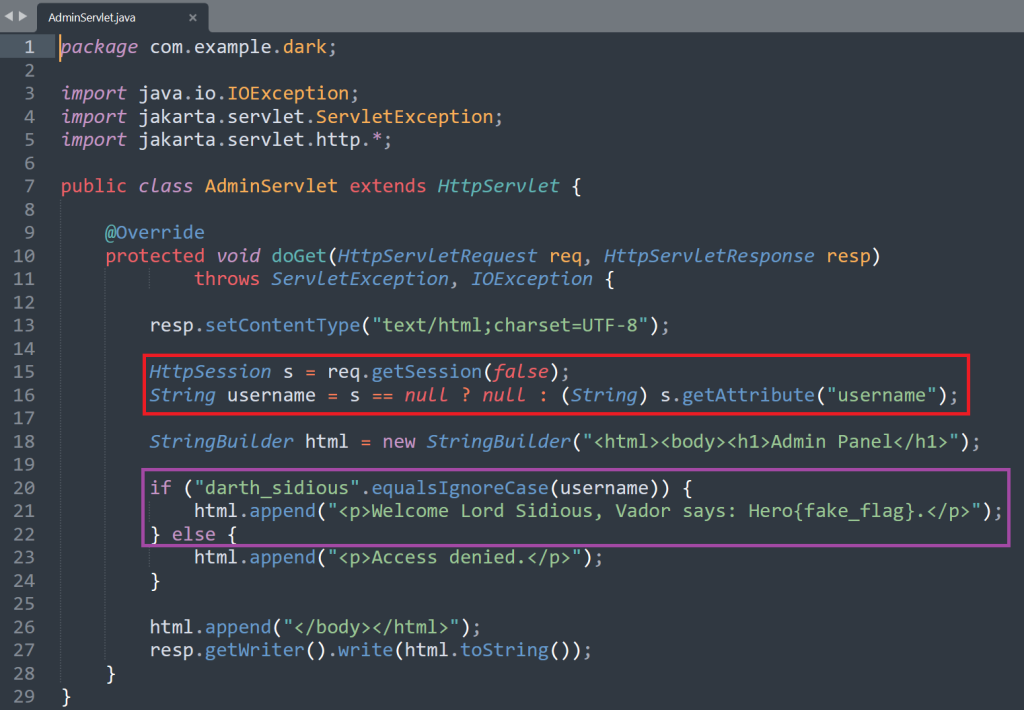
The only problem is that when you visit the site it gives you a form where you can put an username but as the code in the red box shows the user is unable to enter the word “darth_sidious” so you would be unable to get the flag.
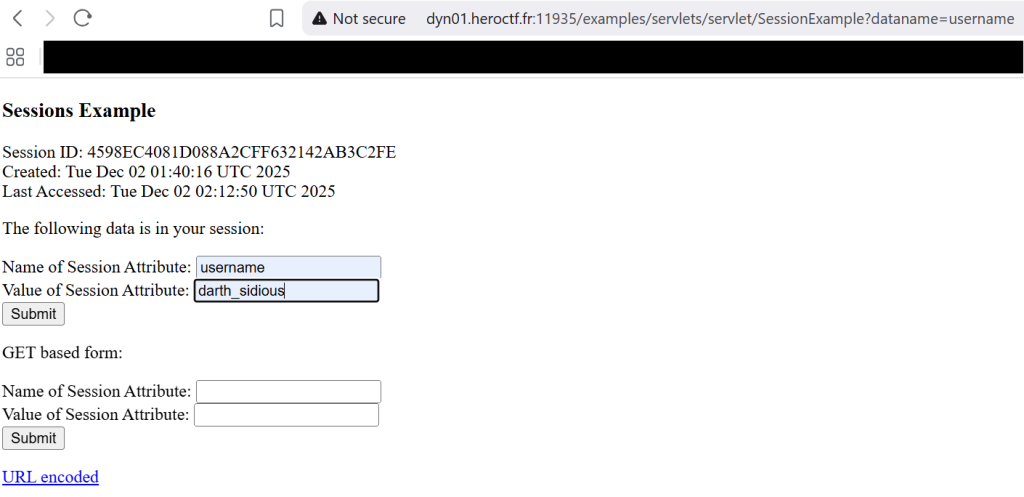
Next we visited the following path: ‘/examples/servlets/servlet/SessionExample;‘. Which allows us to create a cookie session with the username “darth_sidious“. I found the SessionExample page through using a web path scanner.
Some of the lessons learned was to have and use multiple different directory list files because I tried to find the SessionExample path with one but it did not find anything. After spending a whole day trying and failing I realized I should use a different directory list.
Next I entered “username” for the session attribute and then added the word darth_sidious for the value of the cookie. By entering those two values, it will tell the web app that we are the user darth_sidious which when visiting the /dark path will give me the flag.
Next I went to the /dark webpage and clicked “Admin interface“.
After you click the link, it shows the flag!

Movie Night

With the challenge movie night, we are given access to a terminal with the username “user” which does not have any sudo rights. The goal of this challenge is to be access a file located /home/dev/flag.txt which is in dev’s home directory. A folder which I did not have access to.

First poked around a couple of different directories. I checked the /var/logs folder, nothing. Next I tried to access the /etc/passwd file. No cigar.
I was able to change directory to the home folder but I could not enter dev‘s home directory. Almost immediately, I realized that I need to escalate privilege to be able to read the file that contained the flag.
The problem was that I could not download any tools like LinPEAS. So I first used the following command to get all the other binaries that have root access.
find / -perm -u=s -type f 2>/dev/null
I then headed over to GTFOBins and attempted to find if any of the binaries found with the command above could be used to escalate privileges. Sadly none of them worked.
I then went back searching through the directories and files looking for something. I did notice that in the /tmp file there was a couple of files related to tmux. Which allows you to have multiple sessions on one machine. At first I have to admit that I did not think it was of importance.
I looked in the different directories, did some Googling, trying some of the methods I found on Google. Nothing worked.
I decided to stop for a while and watch some TV. Maybe an hour or so later I got back to it. I was curious what is running on the machine so I used the command:
ps aux
The first two letters ( ps ) stand for process status and “a” part tells it to show the processes from all the users, the “u” tells it to format it a certain way and the “x” tells it to show background processes.
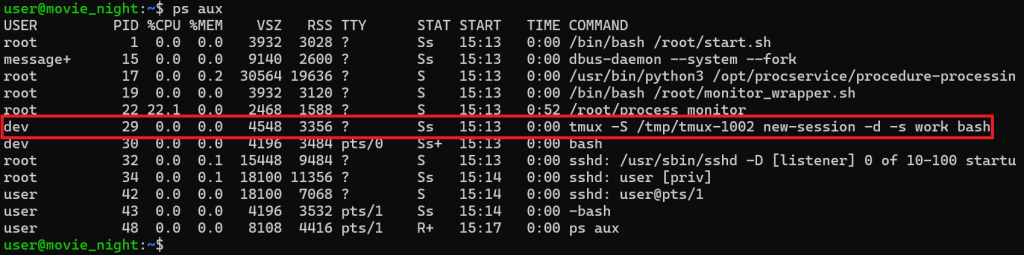
There was a “tmux” process that was running. That got me thinking if I could somehow get access to the dev account by using tmux. I checked and tmux was installed on the computer.

The image above shows the running of the command “tmux list-sessions” and also shows that there are “no server running” which makes sense because my user ( user ) is not running any instances of tmux, but the user dev is running a instance of tmux.
The screenshot below shows the tmux session files located in the tmp file.

The command below shows how we can attach to the running session by the user dev.

After running the command above, a new screen appears that looks like we are now logged in as the user dev. I ran the “id” command to see if we are really now logged in as the user dev.

After running the “id” command I use the cat command to view the flag file which is located in /home/dev/flag.txt.
The Chef’s Secret Recipe
This was a reverse engineering challenge. I first used the “strace” command but did not come up with anything interesting. The image below shows the following command being used which I was able to grab the flag.
The command was ltrace -s 300 ./my_secret_recipe m.
![Screenshot of decompiled C code showing a strcmp comparison against the hardcoded string Hero{Oh_N0_y0u_60T_My_S3cReT_C4k3_R3c1pe}z\245j\026x, followed by a puts call printing ‘[-] Nope’ when the comparison fails.](https://michaelmeade.org/wp-content/uploads/2025/12/chef-2.png)
Which gave me the flag:
Hero{0h_N0_y0u_60T_My_S3cReT_C4k3_R3c1pe}
Lessons Learned
One of the challenges involved creating a special token to bypass the login screen. I realized what needed to be done but did not know how to achieve it.
After the CTF I was reading other peoples solutions and saw that they used a handy site, JSON Web Tokens. We had the challenges source code, well at least part of it. Which showed the type of encryption and other informations.
Next time I will do more searching and try out this site. For this challenge I used dev tools to see the cookie which was base64 encoded and was a JSON blob.
I knew it was a JSON blob because it started with “eyJhbG“. Which I recognized immediately. But when I Base64 decoded the string in the cookie it showed gibberish.
I also learned about Tomcat. In the past I had only experience with Apache or Nginx. With Tomcat I learned about Servlets and how to access them.
I did find a default webpage on the Tomcat server that you enter a number and the page tells you if you guessed the right number.
I wrote a quick Ruby script to automate it as it was only guessing 1 – 100. It turned out to be a red herring and not apart of the challenge.