

Origin Story.
I decided to take some of my projects and publish the gems on Rubygems with my awesome username of Banksy. For those who do not know, gems are like Python’s packages.
They make it easy to run code. To access the gem, simply add’ require “gem_name” ‘ to the top of the file, and then you can use the code. Replace “gem_name” with the name of the gem you want to use.
Anyway, I was curious about how gems work, like what is inside a .gem file.
First, I will talk about the “.gemspec” file, which contains information about the author, the dependencies, the version of code, and other information. Below is a snippet of what a gemspec file looks like.
Gem::Specification.new do |s|
  s.name        = 'example'
  s.version     = '0.1.0'
  s.licenses    = ['MIT']
  s.summary     = "This is an example!"
  s.description = "Much longer explanation"
  s.authors     = ["Ruby Coder"]
  s.email       = 'rubycoder@example.com'
  s.files       = ["lib/example.rb"]
  s.homepage    = 'https://rubygems.org'
end
After creating and adding the information to the .gemspec, you need to compile the gem. The following command does just that. It will create a .gem file based on the information in the .gemspec.
The command is:
gem build example.gemspecThe command above is what generates the .gem file, which, if you want to publish it on Rubygems you need to upload the .gem file to Rubygems.org using the following command.
gem push example.gemOkay, so I created the gem file. Now, let’s see what type of file it is. In this example, I am using one of my recently published gems called reverse_shell, which allows you to run reverse shell commands and generate commands. I used the famous “file” command.

From the image above, we can see that a gem file is really a POSIX tar archive. So basically similar to a zip file. More information can be found here about tar archives.
Extracting the gem.
In the example below, I used the binwalk program to extract the .gem file. But you could also use 7-Zip or the untar command to do the same thing.
With binwalk, the “-e” flag extracts the contents of the tar.gz file.
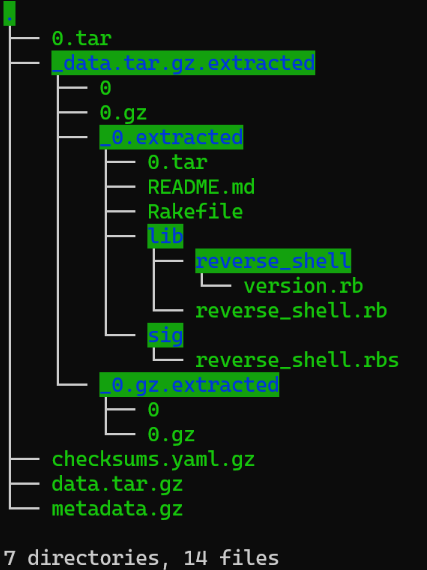
binwalk reverse_shell-0.2.0.gem -eThe screenshot below shows the file tree of the extracted gem file. The “.tar.gz” file is where the gem’s Ruby code is located. It contains the actual Ruby code that runs the gem.
The “metadata.gz” file contains the metadata from the gem. If you are familiar with Ruby Gems, this is the information located in the “.gemspec” file. It contains information like the username of the person who uploaded the gem, the dependencies, and other information.
Looking at metadata.gz.
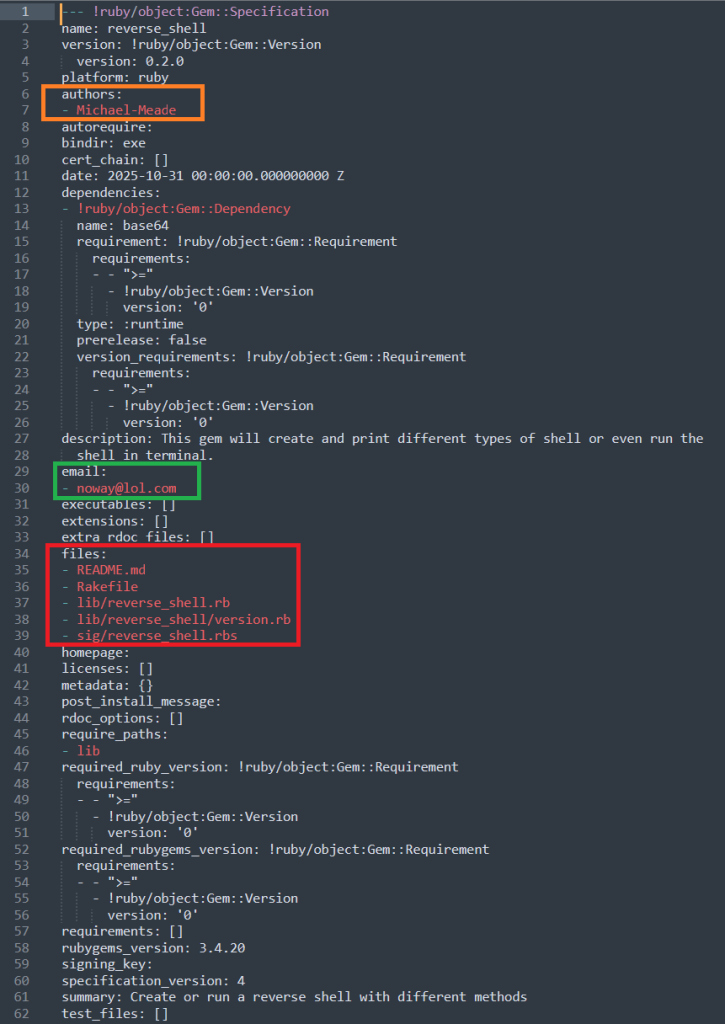
As you can see, the green box shows the dev’s email. The red square lists all of the different files that the gem has.
The orange box shows the name of the person or people who created the gem.
Looking at checksums.yaml.gz.

The image above shows that when a gem is uploaded to Rubygems.org, they hash the contents of the .tar and .tar.gz using the SHA256 hashing algorithm. It also hashes the .tar and .tar.gz using SHA512.
The hash represents the contents of the file. So if I were to take the same extract gem and hash it, it should be the same exact hash because it is the same gem.
Which is why the hash is longer than the one above, which makes it harder for brute force attempts or finding collusion.
SHA256 is still secure; I am not sure why they include both types of hashes.
If one character or byte is changed, the SHA256 or SHA512 hash will be different than the ones listed in the .yaml file.
Installing a Gem.
The following command can be used to install a gem.
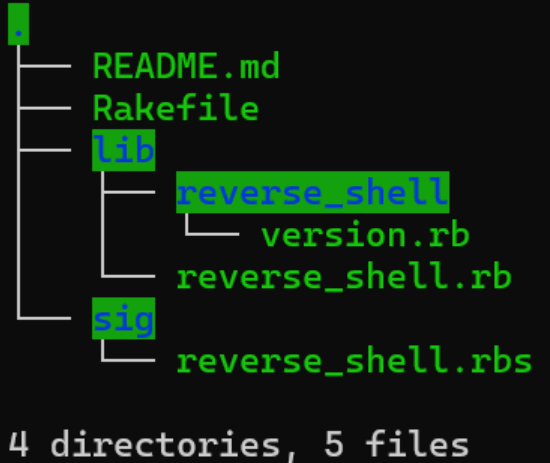
gem install exampleTo unpack a gem, use the following command. It will show you the source code of the gem.
It might be a good idea to unpack the gem before installing the gem on your device or workspace.
Especially if you are at work, you do not want to be the reason why your company was hacked.
Unpacking a gem.
gem unpack exampleThe image below shows what it looks like when the command is ran.
Uninstalling a gem.
gem uninstall exampleSometimes you will want to uninstall a gem from your system. The command above can be used to uninstall a gem.
Updating a gem.
Once in a while, you will need to update a gem. The command below will do just that.
Keeping gems installed on your machine is important because they could have vulnerabilities in them that could affect the code you are working on.
Also updating a gem might fix any bugs that might occur or even include new features that could make your job easier.
gem update example Listing all the gems installed.
gem list example The command above will list all the installed gems on your system. It will also show the version of those gems.
Viewing source code of a gem.
If you want to view the source code of a gem without having to install it on your computer, you would use the following command. This will only download the .gem file.
gem fetch exampleIn the example above, we downloaded the .gem file of a gem called example. Now we have to use the ‘unpack’ command to view the source code of the gem.
gem unpack exampleSearching for gems with CLI.
Instead of using Rubygems.org, you could search for gems in the command line using the following command.
Something that is cool with the command line search is that you can use regexes when searching.
gem search ^color